1- Download and install the SoftEther server application.
2- Run the installed application.
3- Click on Edit setting and choose a password in the shown section.
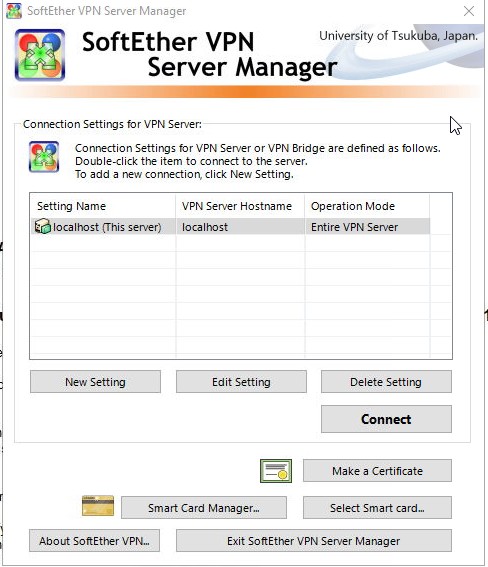
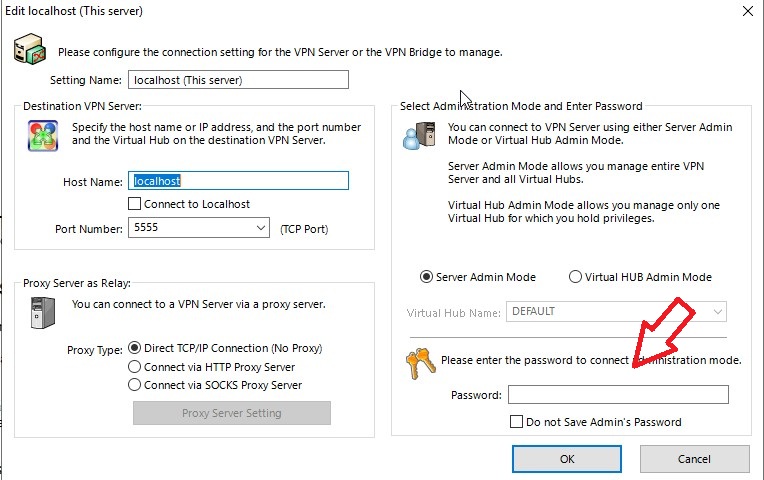
4- Click on Connect, then OK (without a password).
5- Enter the chosen password in step 3.
6- Choose Remote Access VPN Server.
7- Choose a Hub Name.
8- Choose a DDNS Hostname and push "Set to Above Hostname", and then push the Exit button.
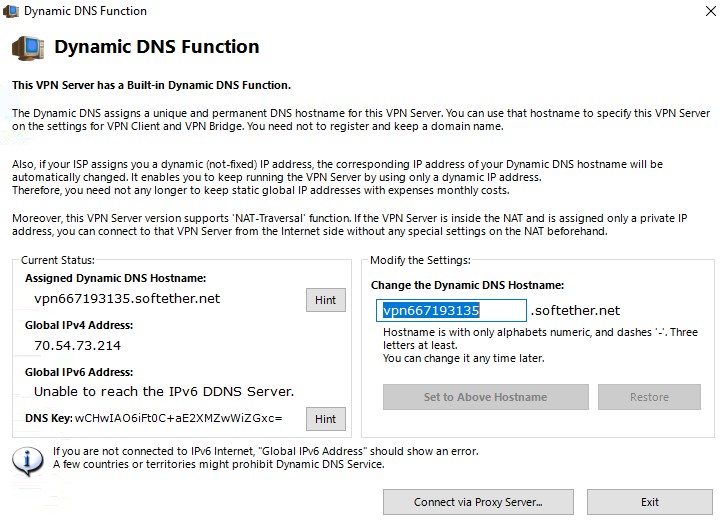
9- OK.
10- Select Disable VPN Azure then OK.
11- In the Step 3 section, choose the active NIC.
12- Close.
13- Remove or stop unused ports (Keep 5555)
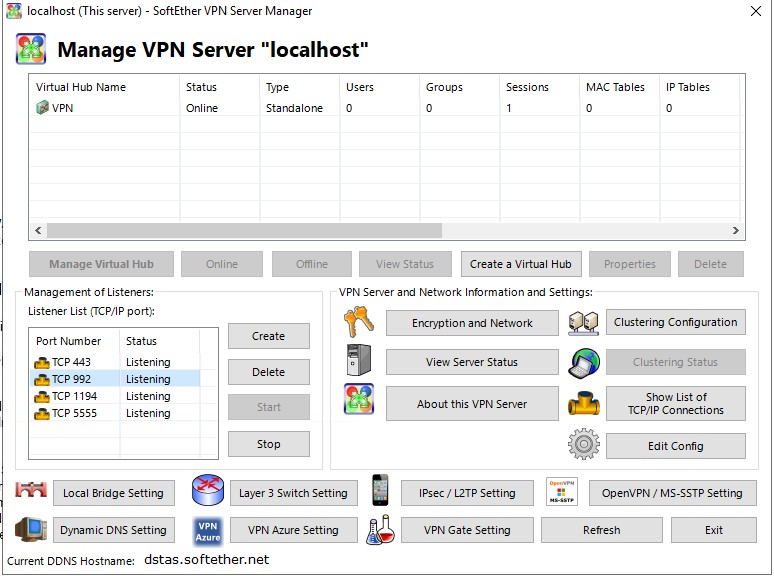
14- Choose the created Virtual Hub and click on the "Manage Virtual Hub".
15- Manage Users
16- New
17- Choose a User Name and password.